
WizLiv · Guides & Help

WizLiv IPTV Guides & Blog.

Simple, honest guides to help you set up IPTV, fix common issues, and get the most out of WizLiv on every device.

Click any card below to open a focused walkthrough with detailed steps, tips, and context.

Getting Started with IPTV

Start here if you’re new to IPTV or setting up WizLiv on a fresh device.

Smart TV with IPTV interface showing live channels
Smart TV · Setup · Guide

The Complete Guide to Setting Up IPTV on Your Smart TV

Transform your Samsung, LG, Android TV, or other Smart TV into an entertainment hub with our detailed WizLiv setup guide.

Smart TV with IPTV interface showing live channels

Streaming IPTV on your Smart TV offers the ultimate convenience—no extra boxes, cables, or clutter. With services like WizLiv, you can transform your television into a powerful entertainment hub directly. While the exact process varies by brand, the core principles remain consistent.

What You'll Need: The Essentials Checklist

Before you begin, gather these crucial elements:

1. Your WizLiv Credentials

  • Username & Password: The standard login method.
  • M3U URL or Portal URL: A unique web link provided by WizLiv for some players. Treat this like a password—keep it confidential.

2. A Stable, High-Speed Internet Connection

  • Minimum Speed: We recommend 15–20 Mbps for consistent HD streaming.
  • Connection Type: A wired Ethernet connection is always superior for stability. If using Wi-Fi, ensure your TV has a strong signal.

3. Access to Your TV's App Store

  • This is typically labeled as Samsung Apps (Tizen), LG Content Store (webOS), Google Play Store (Android TV/Google TV), or VIDAA App Store (Hisense).

Step-by-Step Setup: From App to Playback

Step 1: Choosing & Installing an IPTV Player

Search your TV's app store for one of these recommended players:

  • For Most Smart TVs (Android/Google TV): Smarters Player, OTT Navigator, or TiviMate.
  • For Samsung (Tizen OS): Smarters Player Lite or IPTV Smarters Pro.
  • For LG (webOS): OTT Player or SS IPTV.
Pro Tip: If you can't find a specific app, your TV's operating system might not support it. In that case, an external device like a Fire Stick or Android Box is a great alternative.
Step 2: Configuring Your Player with WizLiv Details

Launch the app and look for an "Add Playlist" or "Login" option:

  • For Username/Password: Select the "XTREAM CODES API" login method. Enter server URL, username, and password exactly as provided.
  • For M3U/Portal URL: Select "Add Playlist via URL" and paste the entire URL provided by WizLiv.

Caution: Be mindful of spacing and capitalization when entering credentials.

Step 3: Finalizing & Loading Your Playlist

After entering your credentials:

  1. Save the profile or playlist.
  2. Exit the settings menu.
  3. Fully restart the app (close it from your TV's task manager if possible). This triggers the player to fetch the latest channel list, electronic program guide (EPG), and video-on-demand (VOD) content.

Troubleshooting: If Channels Don't Appear

If you're met with a blank screen after a minute, methodically check these three critical areas:

1. Credentials

The most common issue. Re-enter your username, password, or URL carefully. A single mistyped character will cause failure.

2. Internet Connection

Run a network test on your TV. Try rebooting your router and modem. If on Wi-Fi, test with a wired connection to rule out signal issues.

3. TV System Time & Date

Incorrect settings can break the secure connection. Go to your TV's main settings > General > System > Date & Time, and set it to "Automatic."

Advanced Checks:
  • Firewall/Security Software: Rarely, your network's security settings might block the IPTV connection.
  • Service Status: Confirm your WizLiv subscription is active and paid.
  • App Updates: Ensure your IPTV player is updated to the latest version.

Enjoying Your WizLiv Experience

Once loaded, explore the intuitive menus of your player. You'll typically find:

  • Live TV: Organized by country, genre, or favorite channels.
  • TV Guide (EPG): For viewing upcoming programs.
  • Catch-up & VOD: Access shows you missed and extensive movie libraries.

Setting up IPTV is a straightforward process when you follow these steps. With your WizLiv service correctly configured on your Smart TV, a world of seamless entertainment is just a remote click away. Enjoy your viewing!
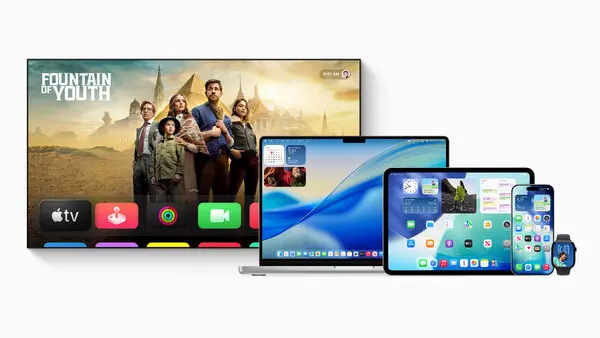
Smartphone and tablet displaying WizLiv IPTV interface with live channels
Mobile & Tablets · Setup · Guide

The Complete Guide to Using WizLiv on iPhone, iPad and Android

Transform your mobile devices into powerful portable entertainment centers with optimal streaming quality and controls.

Smartphone and tablet displaying WizLiv IPTV interface with live channels

Your smartphone or tablet is not just for on-the-go viewing. It is also the perfect diagnostic tool for your WizLiv service. If IPTV performs flawlessly on mobile, you can confidently confirm your account and network routing are in excellent health. This guide covers everything from optimal app selection to advanced streaming techniques.

Why Mobile Devices Excel for IPTV

Mobile devices offer several advantages for IPTV viewing:

Portability and Convenience: Watch anywhere whether commuting, traveling, or in different rooms of your home without being tied to a television.

Instant Diagnostics: Mobile devices provide quick testing of your WizLiv connection, helping isolate issues between service, network, or specific devices.

Screen Mirroring Capabilities: Easily cast content to compatible TVs using AirPlay, Chromecast, or Miracast for a larger viewing experience.

Essential Recommendations for Optimal Mobile Viewing

Choose Trusted Apps

Always download from official stores. Use the Apple App Store or Google Play Store only. Avoid third-party APK sources that may compromise security or stability.

Top Recommended Apps:

  • iOS (iPhone and iPad): GSE Smart IPTV, IPTV Smarters Pro, XCIPTV Player
  • Android: TiviMate, IPTV Smarters, OTT Navigator, Perfect Player

Manage Mobile Data Usage

Prevent unexpected data overages by setting streaming quality caps within your IPTV app settings.

  • Standard Definition (SD): 1-2 Mbps (approx. 0.5-1GB per hour)
  • High Definition (HD): 3-5 Mbps (approx. 1.5-2.5GB per hour)
  • Full HD (1080p): 6-8 Mbps (approx. 3-4GB per hour)

Most apps allow you to set different quality presets for mobile data versus Wi-Fi.

Optimize Wi-Fi Connectivity

For testing and optimal streaming, stay within close range of your router, ideally in the same room.

  • Use 5GHz Wi-Fi band when available for less interference
  • Disable VPN during initial setup to eliminate variables
  • Consider Wi-Fi analyzer apps to identify congested channels

Step-by-Step Setup Guide

Step 1: Install a Trusted IPTV Player

Search your device's official app store for one of the recommended players. Download and install the latest version.

iOS Note: Some apps may require external playlist configuration via Safari.

Android Note: Enable "Install from Unknown Sources" only if downloading from developer websites you trust.

Step 2: Configure Your Playlist

Open the app and locate the playlist management section. Common menu labels include:

  • "Add Playlist" or "Add URL"
  • "Xtream Codes Login" or "Portal Login"
  • "M3U URL" or "Playlist Configuration"

Select the method matching your WizLiv credentials.

Step 3: Enter WizLiv Credentials Carefully

Input your details exactly as provided by WizLiv support:

For Xtream Codes Login:

  • Server URL: https://your-server.com
  • Username: Your exact username
  • Password: Case-sensitive password

For M3U URL:

  • Paste the complete URL without modification
  • Ensure no extra spaces at beginning or end

Step 4: Enable Essential Features and Refresh

After adding your playlist, configure these settings for best experience:

  • Channel Grouping: Organize channels by country, category, or language
  • EPG (Electronic Program Guide): Enable for TV schedule information
  • Catch-up/VOD: Turn on if your subscription includes these features
  • Auto-Refresh Interval: Set to 12-24 hours for updated channel lists

Finally, perform a manual refresh to load all content.

Advanced Mobile Features and Capabilities

Screen Mirroring and Casting

Once mobile setup is complete, easily share content on larger screens:

  • iOS: Use AirPlay to Apple TV or compatible smart TVs
  • Android: Cast via Google Chromecast or built-in screen mirroring
  • Universal: HDMI adapters (Lightning/USB-C to HDMI) for direct connection

Some IPTV apps have built-in casting buttons for seamless transfer.

Multi-Screen and Background Playback

Maximize your mobile viewing experience:

  • Picture-in-Picture (PiP): Available on newer iOS/Android for multitasking
  • Background Audio: Some apps continue audio when switching to other apps
  • Offline Viewing: Download VOD content when Wi-Fi is available for later playback

Troubleshooting and Optimization

Common mobile-specific solutions:

  • Buffering Issues: Lower stream quality, switch between Wi-Fi/data, or enable hardware acceleration
  • EPG Not Loading: Manually enter EPG URL from WizLiv or adjust timezone settings
  • App Crashes: Clear app cache, reinstall, or try alternative player
  • Connection Errors: Temporarily disable VPN, firewall, or battery-saving modes

Security and Privacy Considerations

Secure Your Credentials

Never share screenshots containing your portal URLs or login details on social media or forums.

Use VPN Wisely

While VPNs can enhance privacy, they may affect streaming performance. Test with and without VPN to determine optimal configuration.

App Permissions

Review requested permissions. Legitimate IPTV players typically need network access but should not require excessive device permissions.

Your mobile device is more than just a backup viewer. It is a versatile, portable entertainment system and a valuable diagnostic tool. By following this comprehensive guide, you will enjoy seamless WizLiv streaming whether at home or on the go. Perfect your mobile setup first, and you will have confidence in your service wherever you choose to watch.

Ready for the next step? Once mobile viewing is perfected, explore our guides on screen mirroring to Smart TVs or setting up multi-room IPTV systems.

Laptop displaying IPTV interface with live channels on screen
Desktop & Laptops · Setup · Guide

The Complete Guide to Watching IPTV on Windows and macOS

Use your laptop or desktop for a stable, flexible IPTV experience with quick navigation and advanced controls.

Laptop displaying IPTV interface with live channels on screen

Computers are excellent for IPTV when you want more control. They offer keyboard shortcuts, multiple windows, and precise network testing tools that enhance your viewing and troubleshooting experience.

Why Computers Excel for IPTV Viewing

Desktop and laptop computers provide unique advantages that complement TV-based viewing:

Advanced Control and Precision: Computers offer keyboard shortcuts, precise mouse navigation, and the ability to run multiple applications simultaneously. You can have your IPTV player open alongside a web browser, network monitoring tools, and chat applications.

Superior Diagnostic Capabilities: Computers are powerful diagnostic tools. When experiencing issues, you can quickly determine if problems are specific to your television setup or related to your internet connection or WizLiv service.

Flexible Recording and Capture: Easily record clips, take screenshots, or capture streaming data for troubleshooting purposes or to share content with support teams when seeking assistance.

Recommended Approach for Computer Setup

Choose the Right Software

Select a lightweight IPTV application or a trusted media player that supports network streams:

  • Windows Recommended Apps: MyIPTV Player, VLC Media Player, Kodi with IPTV add-ons, ProgTV
  • macOS Recommended Apps: IINA, VLC Media Player, IPTVX, Kodi
  • Cross-Platform Options: OTT Navigator (via Android emulator), web-based players

Optimize Network Connectivity

For the most stable connection and accurate testing:

  • Connect via Ethernet cable whenever possible. This removes Wi-Fi interference and provides consistent bandwidth
  • If using Wi-Fi, position your computer close to the router or use a Wi-Fi extender
  • Consider using a network monitoring tool to track bandwidth usage and connection stability

Configure System Settings

Proper system configuration ensures smooth IPTV playback:

  • Keep your system time and region settings accurate and synchronized
  • Update your operating system and network drivers regularly
  • Configure firewall settings to allow your IPTV application proper network access
  • Adjust power settings to prevent the computer from sleeping during viewing

Computer-Specific Advantages for Troubleshooting

Comprehensive Network Diagnostics

Computers allow you to run advanced diagnostics while streaming:

  • Run real-time speed tests while your IPTV stream is active
  • Use ping and traceroute commands to identify network bottlenecks
  • Monitor network traffic to determine if other applications are interfering with your stream
  • Test different DNS servers to optimize connection routing

Isolation Testing

Use your computer to determine the source of streaming issues:

  • Test your WizLiv service on the computer to confirm whether issues are specific to your television setup
  • Compare performance across different applications to identify software-specific problems
  • Test with and without VPN to determine optimal configuration
  • Compare performance on different networks (home, office, mobile hotspot) to isolate local network issues

Documentation and Support

Computers make it easy to document issues for technical support:

  • Quickly record and share short video clips of playback issues
  • Capture and share network statistics and error messages
  • Take screenshots of configuration settings for review
  • Maintain a log of issues and solutions for future reference

Step-by-Step Setup Guide

Step 1: Install Your Chosen IPTV Application

Download and install your selected IPTV player from the official website or trusted app store. For media players like VLC, ensure you have the latest version installed.

Step 2: Configure Your Playlist

Open your IPTV application and add your WizLiv playlist:

  • Locate the playlist or network stream option in the application menu
  • Enter your M3U URL or Xtream Codes credentials exactly as provided
  • Save the configuration and allow the application to load the channel list

Step 3: Optimize Playback Settings

Configure the application for optimal performance:

  • Adjust buffer size based on your connection stability
  • Select appropriate video output and decoding settings for your hardware
  • Configure EPG settings to load program information
  • Set up favorites and channel groups for easy navigation

Step 4: Test and Validate

Verify your setup is working correctly:

  • Test multiple channels to ensure consistent playback
  • Verify EPG data is loading correctly
  • Test VOD content if included in your subscription
  • Monitor for buffering or playback issues

Advanced Computer Features

Multi-Monitor and Window Management

Take advantage of computer display capabilities:

  • Watch IPTV on one monitor while working on another
  • Use picture-in-picture or window always-on-top features
  • Adjust window size and aspect ratio for optimal viewing

Audio Configuration Options

Computers offer advanced audio control:

  • Route audio to different output devices (speakers, headphones, external audio systems)
  • Adjust audio delay to sync with video if needed
  • Use equalizer settings to enhance audio quality

Automation and Scripting

Advanced users can automate IPTV tasks:

  • Create scripts to launch your IPTV player with specific settings
  • Automate channel switching or recording schedules
  • Integrate IPTV with other media management systems

Security Considerations for Computer Viewing

Application Security

Ensure your IPTV setup remains secure:

  • Only download applications from official sources or trusted developers
  • Keep your IPTV software updated to the latest version
  • Use antivirus software to scan downloaded applications

Network Security

Protect your connection and credentials:

  • Consider using a VPN for enhanced privacy, but test performance impact
  • Use a firewall to control network access for your IPTV application
  • Avoid sharing screenshots containing your login credentials or portal URLs

System Maintenance

Keep your computer optimized for IPTV viewing:

  • Regularly clear application cache and temporary files
  • Monitor system resources to ensure sufficient RAM and CPU availability
  • Keep your operating system and drivers updated for optimal performance

Your computer is not just an alternative viewing device. It is a powerful tool for enjoying, testing, and troubleshooting your WizLiv service. With precise controls, advanced diagnostic capabilities, and flexible configuration options, computer-based viewing enhances your overall IPTV experience. Set up IPTV on your computer today to enjoy superior control and become your own technical support expert.

Ready to enhance your setup? Once your computer configuration is complete, explore our guides on multi-device synchronization or advanced network optimization for IPTV.

Troubleshooting & Fixes

When something doesn’t feel right — buffering, freezing, or missing channels — start with these guides.

Stream showing buffering symbol on screen with network indicators
Troubleshooting · Stability · Guide

How to Fix Buffering and Freezing Issues

A clear step-by-step method to identify if the issue is your line, device, or connection.

Stream showing buffering symbol on screen with network indicators

Buffering does not always mean the server is overloaded. In many cases, local conditions cause the stream to slow or stall. Common culprits include Wi-Fi interference, ISP routing problems, and device limitations.

Understanding the Root Cause

Before attempting fixes, understand what type of buffering you are experiencing:

Consistent Buffering: Occurs regularly across multiple channels and times, often indicating network or connection issues.

Intermittent Buffering: Happens sporadically, often related to Wi-Fi interference or peak usage times.

Channel-Specific Buffering: Only affects certain channels, potentially indicating source or routing issues.

Quick Diagnostic Checks

Isolate the Problem Source

Perform these tests to determine where the issue originates:

  • Test on a second device (phone or laptop) using the same network to see if the problem is device-specific
  • Test on mobile data (4G/5G) if possible to compare different network routes
  • Try another IPTV app if available, as some players handle network errors better than others
  • Test at different times of day to identify peak usage patterns

Network Performance Assessment

Evaluate your connection quality:

  • Run speed tests at different times, focusing on consistent speeds rather than peak results
  • Check for packet loss using online tools or command-line utilities
  • Monitor network stability during streaming sessions
  • Test both download and upload speeds, as some ISPs throttle specific traffic types

If Only One Device Buffers

Device-Specific Troubleshooting

When buffering is isolated to a single device:

  • Restart the device completely, then restart the IPTV application
  • Close background applications, especially other streaming services or large downloads
  • Clear the application cache and temporary files
  • For Smart TVs, disable Eco mode or aggressive power-saving settings that may affect Wi-Fi performance
  • Update the device firmware and IPTV application to the latest versions

Wi-Fi Optimization for Single Devices

Improve wireless connectivity for the affected device:

  • Move the device closer to the router or consider using a Wi-Fi extender
  • Switch between 2.4GHz and 5GHz Wi-Fi bands to find the most stable connection
  • Reduce interference by moving other electronic devices away from the streaming device
  • For TVs, consider using an Ethernet connection for maximum stability

If All Devices Buffer

Network-Wide Solutions

When multiple devices experience buffering simultaneously:

  • Restart your router and modem completely, waiting 2-3 minutes for full reconnection
  • Check for ISP outages or maintenance in your area
  • Reduce the number of connected devices during peak streaming times
  • Consider upgrading your internet plan if consistent buffering occurs during family usage

Advanced Network Configuration

Technical adjustments for persistent issues:

  • Change your DNS servers to Google DNS (8.8.8.8, 8.8.4.4) or Cloudflare DNS (1.1.1.1)
  • Configure Quality of Service (QoS) settings on your router to prioritize streaming traffic
  • Adjust MTU settings if experiencing specific packet fragmentation issues
  • Consider using a VPN to test different routing paths to the IPTV servers

Application and Service Settings

IPTV Player Configuration

Optimize your streaming application:

  • Increase buffer size in your IPTV player settings
  • Lower stream quality temporarily to test if buffering decreases
  • Enable hardware acceleration if available in your player
  • Try different streaming protocols if your player offers multiple options

When to Contact Support

If problems persist after all troubleshooting:

  • Note the exact time and channels affected by buffering
  • Document your troubleshooting steps and results
  • Provide speed test results and any error messages received
  • Mention whether the issue occurs on multiple networks

Buffering issues can often be resolved through systematic troubleshooting. By methodically testing different variables, you can identify whether problems stem from your device, local network, or service provider. Remember that consistent documentation of when and where issues occur is your most valuable tool for both self-troubleshooting and support requests.

TV screen showing channel error with troubleshooting overlay
Troubleshooting · Channels · Guide

When a Channel Does Not Open or Work Properly

A systematic approach to determine if it is one channel, a group, or a broader service issue.

TV screen showing channel error with troubleshooting overlay

When specific channels fail to load while others work normally, this typically indicates a localized issue rather than a complete service outage. Such problems often relate to specific source routing, temporary broadcast interruptions, or regional restrictions.

Initial Diagnostic Steps

Isolate the Problem Scope

Determine whether you are experiencing a single channel issue or something more widespread:

  • Try 2-3 other channels in the same category (sports, news, entertainment)
  • Switch to completely different categories to compare performance
  • Test channels from different countries or language groups
  • If only one channel fails repeatedly, note its exact name and number

Timing and Pattern Analysis

Channel issues often follow specific patterns:

  • Check if the problem occurs at the same time daily
  • Note whether the channel works at some times but not others
  • Determine if the issue started after a specific event or change
  • Check if other household members experience the same problem

Single Channel Issues

Troubleshooting Isolated Channel Problems

When only one channel is affected:

  • Wait 5-10 minutes and try the channel again (temporary source issues often resolve quickly)
  • Check if the channel is experiencing scheduled maintenance or known outages
  • Verify that the channel is included in your current subscription package
  • Try accessing the channel through different IPTV applications if available

Channel-Specific Technical Checks

Advanced troubleshooting for persistent single channel issues:

  • Check if the channel requires specific codecs or player settings
  • Verify that regional restrictions are not preventing access
  • Test whether the channel works on different networks (mobile data vs home Wi-Fi)
  • Clear the specific channel cache in your IPTV application

Group or Category Issues

When Multiple Channels Fail

If entire channel groups or categories are not working:

  • Refresh your playlist completely using the reload or sync function in your app
  • Restart your IPTV application after waiting 10-15 seconds for network stability
  • Check if the problem affects specific countries or language groups
  • Verify that your subscription includes the affected channel groups

Playlist and Configuration Updates

Address issues with channel groups:

  • Manually update your playlist URL if you have access to it
  • Check for application updates that might resolve category loading issues
  • Try importing your playlist into a different IPTV player as a test
  • Reset channel groupings and favorites to default settings

Reporting Channel Issues Effectively

Information to Gather Before Contacting Support

Prepare detailed information to facilitate quick resolution:

  • Exact channel name and number (if available)
  • Specific time the issue occurred or started
  • Your country and internet service provider
  • Whether other channels in the same group work normally
  • Error messages displayed (if any)
  • Steps you have already taken to troubleshoot

What Support Teams Need to Know

Providing complete information saves time and back-and-forth communication:

  • Whether the issue affects all devices or specific ones
  • If the problem occurs on different networks
  • How long the channel has been problematic
  • Any recent changes to your setup or network
  • Previous tickets or reports about the same channel

Preventive Measures and Best Practices

Minimizing Future Channel Issues

Reduce the likelihood of channel problems:

  • Keep your IPTV application updated to the latest version
  • Regularly refresh your channel list to ensure you have current sources
  • Maintain stable internet connectivity with adequate bandwidth
  • Use wired connections for critical viewing when possible
  • Have alternative channels bookmarked for important events

Single channel issues are common in IPTV services and often resolve themselves as source problems are addressed. By following this systematic approach, you can quickly determine the scope of the problem and take appropriate action. Detailed documentation of channel issues not only helps you troubleshoot but also enables support teams to identify and resolve underlying problems more efficiently.

Electronic Program Guide showing schedule information on screen
Troubleshooting · EPG · Guide

Fixing EPG and Program Guide Issues

When the guide is empty, out of sync, or shows No Information for programs.

Electronic Program Guide showing schedule information on screen

The Electronic Program Guide (EPG) relies on precise synchronization between your playlist data and external guide sources. Issues typically stem from mismatched channel IDs, incorrect time settings, or connection problems with guide data servers.

Understanding EPG Fundamentals

How EPG Systems Work

EPG functionality depends on several interconnected components:

  • Channel identifiers that must match between your playlist and the guide source
  • Accurate time and timezone settings on your viewing device
  • Regular updates from EPG data providers
  • Proper configuration within your IPTV application

Common EPG Problem Types

Identify which type of EPG issue you are experiencing:

  • Completely empty guide (no program information for any channels)
  • Partial guide (some channels have information, others do not)
  • Incorrect timing (programs listed at wrong times)
  • Outdated information (guide not updating with current schedules)
  • No Information displayed for specific programs

Initial Diagnostic Checks

Essential Configuration Verification

Start with these basic checks that resolve most EPG issues:

  • Verify device time, date, and timezone settings are correct and set to automatic
  • Confirm that EPG is enabled in your IPTV application settings
  • Allow sufficient time (1-3 minutes) for the guide to download after application launch
  • Check your internet connection is active and stable during EPG loading

Application-Specific Settings

Check these common EPG configuration options:

  • EPG source URL is correctly entered if manual configuration is required
  • Update interval is set appropriately (typically 12-24 hours)
  • Storage permissions allow the app to save guide data locally
  • Caching options are configured for optimal performance

Complete EPG Absence

When No Guide Data Appears

If your EPG is completely empty across all channels:

  • Fetch a fresh playlist or re-add your subscription line completely
  • Restart your IPTV application after updating the playlist
  • Check if EPG servers are experiencing outages or maintenance
  • Try a different IPTV player to determine if the issue is application-specific

Network and Connectivity Factors

Network issues affecting EPG loading:

  • Firewall or security software blocking EPG server connections
  • DNS problems preventing resolution of EPG server addresses
  • VPN configurations that might interfere with guide data retrieval
  • Bandwidth limitations during peak download times

Partial or Incorrect EPG Data

When Some Channels Lack Guide Information

If EPG data is missing for specific channels only:

  • Note which channels are affected and compare with another device if possible
  • Check if affected channels have recently changed identifiers or sources
  • Manually match channel IDs if your application supports this feature
  • Contact support with specific channel names that lack EPG data

Timing and Synchronization Issues

When program times are incorrect:

  • Verify your device timezone matches your physical location
  • Check for daylight saving time adjustments if applicable
  • Confirm EPG source is configured for your correct region
  • Adjust time offset settings if available in your IPTV application

Advanced EPG Troubleshooting

Manual EPG Configuration

For advanced users with persistent EPG issues:

  • Obtain direct EPG URLs from your service provider if available
  • Use external EPG sources and configure manual matching
  • Create custom XMLTV files if you have technical expertise
  • Experiment with different EPG update frequencies

Application-Specific Solutions

Common fixes for popular IPTV players:

  • Clear application cache and EPG data completely, then reload
  • Disable and re-enable EPG functionality in settings
  • Reset EPG to default settings and reconfigure
  • Check application forums for known EPG issues with specific versions

Preventive EPG Maintenance

Regular Maintenance Practices

Keep your EPG functioning optimally:

  • Regularly update your IPTV application to benefit from EPG improvements
  • Periodically refresh your playlist to ensure channel-EPG alignment
  • Monitor EPG functionality when adding new channels or categories
  • Keep backup EPG sources configured if your application supports multiple sources

When to Seek Additional Help

Contact support if EPG issues persist after troubleshooting:

  • Provide details about which channels lack EPG data
  • Specify whether the issue affects all devices or specific ones
  • Note when the EPG problem began and any related changes
  • Share screenshots of EPG settings and error messages if available

EPG issues can often be resolved through systematic checking of time settings, application configuration, and playlist synchronization. Remember that EPG functionality depends on precise technical alignment between multiple components. Patient, methodical troubleshooting typically resolves most guide-related problems.

Benefits of IPTV & Best Practices

Beyond setup and fixes — how to make IPTV feel natural, reliable, and worth keeping.

Comparison showing traditional TV vs modern IPTV interface
Benefits · Experience · Guide

Why IPTV Feels Different from Traditional Television

What you gain, what changes, and how to adjust your viewing habits for the best experience.

Comparison showing traditional TV vs modern IPTV interface

IPTV represents a fundamental shift in how we consume television content. While traditional TV delivers a fixed signal through cables or satellites, IPTV operates as an internet-based application ecosystem. This transition offers unprecedented control and flexibility but also requires some adjustment in expectations and usage habits.

The Fundamental Shift in Television Delivery

From Broadcast to On-Demand Delivery

Traditional television operates on a broadcast model where content is pushed to viewers according to predetermined schedules. IPTV transforms this relationship by delivering content through internet protocols, creating a more interactive and personalized viewing experience. This shift changes not only how content reaches you but also how you interact with it.

Application Ecosystem Versus Fixed Signal

IPTV behaves more like modern applications than traditional television signals. This means regular updates, multiple device compatibility, and continuous improvements are possible without replacing hardware. However, it also means your viewing experience depends more on your network infrastructure and device performance.

Key Benefits of IPTV Over Traditional TV

Unprecedented Content Access

IPTV breaks geographical barriers that traditionally limited television content:

  • Access international channels and content that is not available through local cable or satellite providers
  • Watch regional programming from anywhere in the world with proper subscription access
  • Discover niche channels and specialized content that traditional providers often exclude due to bandwidth limitations
  • Enjoy content in original languages with various subtitle options when available

Device Flexibility and Mobility

Your television subscription is no longer tied to a specific location or device:

  • Use a single subscription across multiple devices including Smart TVs, smartphones, tablets, and computers
  • Start watching on one device and continue on another without missing content
  • Access your channels while traveling using compatible devices and internet connections
  • Share your subscription with family members on their personal devices within reasonable usage limits

Continuous Service Improvement

IPTV services evolve continuously without requiring customer action:

  • Receive fast updates to channel lists and content without purchasing new hardware
  • Benefit from regular application improvements that enhance performance and features
  • Access new features and content categories as they become available
  • Experience fewer service interruptions related to weather or physical infrastructure issues

Adjusting Your Viewing Mindset

Embracing the Application Model

The most successful IPTV users treat their service as part of an application ecosystem:

  • Keep your IPTV applications updated to the latest versions for optimal performance
  • Regularly check for application updates and new features
  • Understand that occasional updates may temporarily affect service as improvements are implemented
  • Learn the specific features and settings of your chosen IPTV application for maximum benefit

Network Consciousness

Since IPTV relies on internet connectivity, your network becomes part of your viewing experience:

  • Favor wired Ethernet connections for stationary devices like main televisions
  • Ensure strong Wi-Fi signals for mobile devices through proper router placement
  • Monitor network performance during viewing and address issues proactively
  • Understand that network congestion can affect streaming quality during peak hours

Proactive Troubleshooting Approach

Develop habits that quickly identify and resolve issues:

  • Test problematic channels or features on multiple devices to isolate issues
  • Keep a mental checklist of troubleshooting steps for common problems
  • Document issues systematically before contacting support
  • Learn basic network diagnostics to distinguish service issues from local problems

The Psychological Adjustment Period

Managing Expectations

New IPTV users should anticipate an adjustment period:

  • Accept that internet-based services have different failure modes than traditional TV
  • Recognize that occasional buffering or connection issues are normal and usually temporary
  • Understand that content availability may fluctuate as licensing agreements change
  • Appreciate that you gain control at the cost of some traditional television reliability

Developing New Television Habits

Successful IPTV viewing requires developing new habits:

  • Regularly explore new channels and content rather than sticking to familiar patterns
  • Learn to use search and filtering features effectively to find content
  • Take advantage of pause, rewind, and catch-up features when available
  • Create personalized channel lists that reflect your actual viewing preferences

Transitioning from traditional television to IPTV represents more than just a change in technology. It requires adopting a new mindset about what television can be and how you interact with it. By understanding the fundamental differences and adjusting your expectations accordingly, you can fully embrace the flexibility, control, and content diversity that IPTV offers while developing effective strategies for managing its unique characteristics.

Visual representation of optimal streaming with smooth playback indicators
Optimization · Performance · Guide

How to Get the Smoothest IPTV Viewing Experience

Small adjustments and consistent habits that make a significant difference in day-to-day viewing quality.

Visual representation of optimal streaming with smooth playback indicators

Achieving consistently smooth IPTV performance requires understanding the relationship between your local environment and the streaming service. Most viewing improvements come from establishing simple, repeatable habits rather than constant technical adjustments. This guide covers both basic optimizations and advanced techniques for premium viewing experiences.

Foundational Network Optimization

Router Management Best Practices

Your router is the gateway to your IPTV experience:

  • Restart your router every few days if your internet service provider has stability issues
  • Position your router centrally and elevate it for optimal signal distribution
  • Update router firmware regularly to benefit from performance and security improvements
  • Consider upgrading to a modern router if yours is more than three years old

Connection Type Selection

Choose the right connection for each device:

  • Use Ethernet connections for stationary devices like main televisions and desktop computers
  • For Wi-Fi devices, connect to the 5GHz band when available for less interference
  • Consider powerline adapters for devices that cannot be connected via Ethernet but are far from the router
  • Test different connection methods to determine what works best for each device and location

Application and Device Management

IPTV Application Maintenance

Keep your viewing software optimized:

  • Keep your primary IPTV application updated to the latest version
  • Remove unused IPTV applications to free up device resources and reduce confusion
  • Clear application cache regularly to prevent performance degradation over time
  • Configure application settings for optimal performance on your specific device

Device Performance Optimization

Ensure your viewing devices operate efficiently:

  • Close unnecessary background applications before starting IPTV sessions
  • Regularly restart your viewing devices to clear temporary memory issues
  • Keep device operating systems updated for optimal performance and security
  • Allocate sufficient storage space for application data and temporary files

Network Quality of Service Configuration

Prioritizing Streaming Traffic

Many modern routers support traffic prioritization:

  • Configure Quality of Service settings to prioritize streaming traffic on your network
  • Set specific bandwidth reservations for your primary viewing devices
  • Limit bandwidth for non-essential devices during peak viewing times
  • Create separate Wi-Fi networks for streaming devices and general internet use

DNS Optimization

Improve connection routing and speed:

  • Change from your ISP default DNS to faster alternatives like Google DNS or Cloudflare DNS
  • Test different DNS providers to find the fastest for your location and service
  • Consider using DNS services that specialize in streaming content optimization
  • Configure DNS settings at the router level for network-wide benefits

Viewing Environment Optimization

Scheduled Viewing Habits

Develop habits that maximize streaming performance:

  • Schedule automatic playlist updates during off-peak hours
  • Perform EPG updates overnight when network traffic is typically lower
  • Plan major viewing sessions during times of typically lower internet congestion
  • Download VOD content in advance for offline viewing when possible

Bandwidth Management

Control your network usage during viewing:

  • Pause large downloads and updates during important viewing sessions
  • Limit the number of simultaneous streams based on your internet plan capabilities
  • Adjust streaming quality settings based on current network conditions
  • Monitor network usage to identify applications that may be consuming bandwidth unnecessarily

Advanced Performance Techniques

Buffer Configuration

Optimize streaming buffer settings:

  • Increase buffer size in your IPTV application for more stable playback
  • Adjust buffer settings based on your specific network stability
  • Experiment with different buffer configurations to find the optimal balance
  • Consider using applications that offer advanced buffer management options

Hardware Acceleration

Leverage device capabilities:

  • Enable hardware acceleration in your IPTV application when supported
  • Ensure your device graphics drivers are updated for optimal video decoding
  • Consider external streaming devices if your television processor is insufficient
  • Use devices specifically designed for streaming when possible

Service-Specific Optimization

Understanding WizLiv Stream Characteristics

WizLiv streams are engineered for specific performance characteristics:

  • Streams are optimized for stability rather than frequent quality changes
  • The service maintains consistent bitrates to provide predictable performance
  • Multiple server locations help distribute load and optimize routing
  • Regular infrastructure updates occur transparently to users

Matching Your Setup to Service Characteristics

Align your local environment with service design:

  • Maintain stable connectivity to match the service stability focus
  • Use consistent viewing patterns to benefit from service optimizations
  • Report persistent issues with specific times and patterns for service improvements
  • Understand typical maintenance windows and schedule around them when possible

A smooth IPTV experience results from the harmony between optimized local conditions and well-engineered streaming services. By establishing consistent maintenance habits, optimizing your network environment, and understanding how your service operates, you can create a viewing experience that approaches the set it and forget it ideal while enjoying far greater content flexibility than traditional television.

User interface showing efficient IPTV navigation with favorites and shortcuts
Tips · Navigation · Efficiency

Practical Tips to Make IPTV Navigation Faster and Easier

Small habits and interface tricks that save time when switching channels or finding content.

User interface showing efficient IPTV navigation with favorites and shortcuts

Once your IPTV service is working reliably, the next step is optimizing how you interact with it daily. Small adjustments to your navigation habits and interface configuration can transform IPTV from a technical service into a seamless entertainment experience. These practical tips focus on reducing clicks, minimizing menu navigation, and creating personalized shortcuts to your preferred content.

Personalized Content Organization

Strategic Use of Favorites

Transform overwhelming channel lists into personalized collections:

  • Create multiple favorite lists for different viewing contexts (sports, news, family viewing, background noise)
  • Organize favorites by time of day or day of week when you typically watch specific content
  • Regularly review and update your favorites to remove channels you no longer watch
  • Use favorites as your primary channel navigation method rather than browsing full lists

Category Management

Customize channel organization to match your viewing patterns:

  • Hide categories you never watch to simplify navigation and reduce visual clutter
  • Reorder categories to place your most-watched content at the top of lists
  • Create custom categories or groups if your IPTV application supports this feature
  • Use category hiding as a way to discover new content by occasionally revealing hidden categories

Navigation Efficiency Techniques

Mastering Application Shortcuts

Learn and utilize built-in navigation shortcuts:

  • Learn 2-3 essential shortcuts in your specific IPTV application (search, last channel, favorites toggle)
  • Practice using number shortcuts for direct channel access if supported
  • Utilize quick jump features to move between channel groups or categories
  • Configure custom remote buttons or keyboard shortcuts for frequent actions

Efficient Search Strategies

Find content faster with smart search techniques:

  • Use partial channel names or numbers when searching to broaden results
  • Search by language, country, or content type when looking for specific programming
  • Save common searches or create search presets for regularly sought content
  • Use EPG search functions to find programs rather than browsing channel by channel

Viewing Session Optimization

Quick Start Techniques

Reduce startup time for viewing sessions:

  • Bookmark your starting channel or favorite list for immediate access upon application launch
  • Use resume or continue watching features when available
  • Configure applications to start in full-screen mode or your preferred view
  • Create desktop shortcuts or home screen widgets for your most-used IPTV functions

Channel Switching Efficiency

Master rapid channel navigation:

  • Learn channel up/down shortcuts that work within categories or favorites
  • Use previous channel functions to toggle between two channels during commercial breaks
  • Create a custom channel list for specific events or viewing moods
  • Utilize picture-in-picture features to monitor multiple channels simultaneously when supported

Custom Interface Configuration

Display Optimization

Tailor the visual interface to your preferences:

  • Adjust EPG time range displays to show more or less of the programming schedule
  • Customize information displayed during channel browsing (current program, next program, quality indicators)
  • Configure channel list density to balance information with readability
  • Use different viewing modes for different devices (simplified for mobile, detailed for television)

Remote Control Customization

Optimize physical or virtual remote controls:

  • Program universal remote buttons for IPTV-specific functions when possible
  • Use smartphone remote applications that offer more customization than physical remotes
  • Create macro commands for complex multi-step navigation sequences
  • Adjust remote sensitivity or button mapping to match your usage patterns

Content Discovery Strategies

Efficient Browsing Habits

Discover new content without endless scrolling:

  • Browse by recently added or updated channels to discover new options
  • Use random or surprise me features when you cannot decide what to watch
  • Create watch later lists for programs discovered outside of viewing time
  • Share channel recommendations with household members to build collective favorites

EPG Utilization Techniques

Leverage program guide information effectively:

  • Browse EPG by genre or category rather than channel by channel
  • Set reminders or recordings for upcoming programs directly from the guide
  • Use EPG search to find specific actors, directors, or program types
  • Configure EPG to highlight programs matching your viewing preferences

Household Configuration Tips

Multi-User Optimization

Manage IPTV for multiple viewers:

  • Create separate user profiles or favorite lists for different household members
  • Establish viewing schedules or priorities during peak family viewing times
  • Share discovered channels or features with other users in your household
  • Coordinate playlist updates and application maintenance across devices

Cross-Device Synchronization

Maintain consistency across viewing devices:

  • Sync favorites and settings across devices when supported by your application
  • Use cloud-based configuration backups to restore settings after device changes
  • Standardize navigation approaches across different device types
  • Create device-specific optimizations while maintaining overall consistency

Efficient IPTV usage transforms the service from a technical novelty into a natural part of your entertainment routine. By implementing these practical navigation tips and organizational strategies, you can achieve channel switching speed and content discovery efficiency that rivals or exceeds traditional television, while enjoying the vastly expanded content selection that only IPTV can provide.